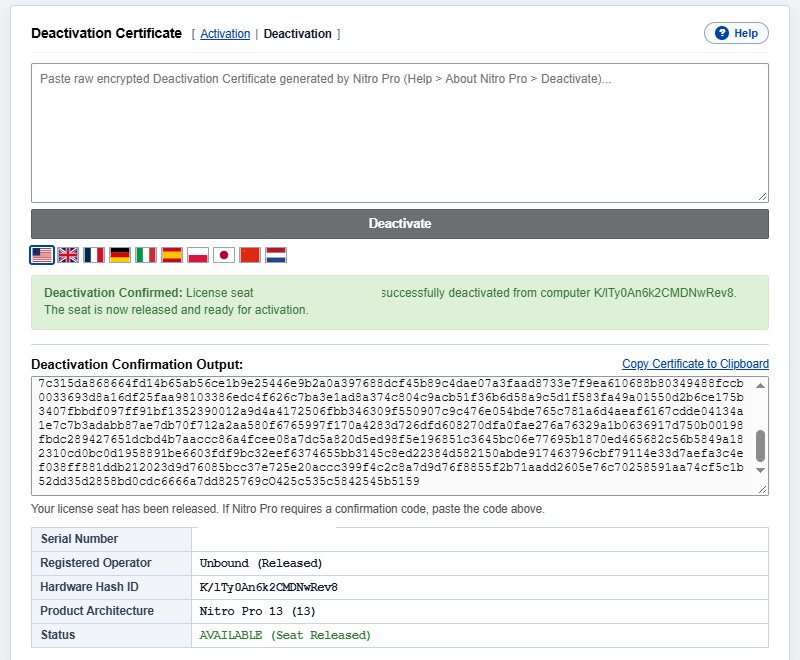
Nitro PDF Pro 14 Installation & Activation Guide
Follow this illustrated step-by-step procedure to download, install, and activate your Nitro PDF Pro 14 license offline. Each step features screenshots with highlighted red arrows pointing directly to the required action buttons.
Download & Install Nitro PDF Pro
Download the official 64-bit installer for Nitro PDF Pro 14 directly using the download button above.
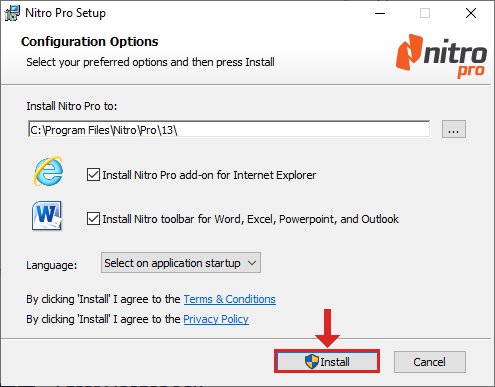
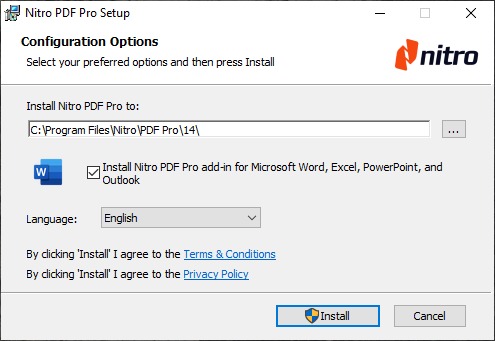
Once downloaded, double-click the installer file. On the setup dialog, click the Install button indicated by the red arrow.
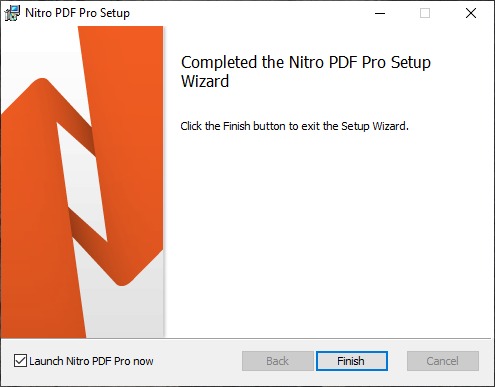
Complete the Setup Wizard
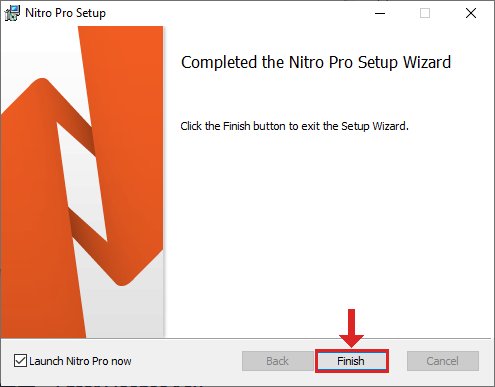
Wait for the installer to finish copying files. When the 'Completed the Nitro Pro Setup Wizard' screen appears, click the Finish button indicated by the red arrow to launch Nitro PDF Pro.
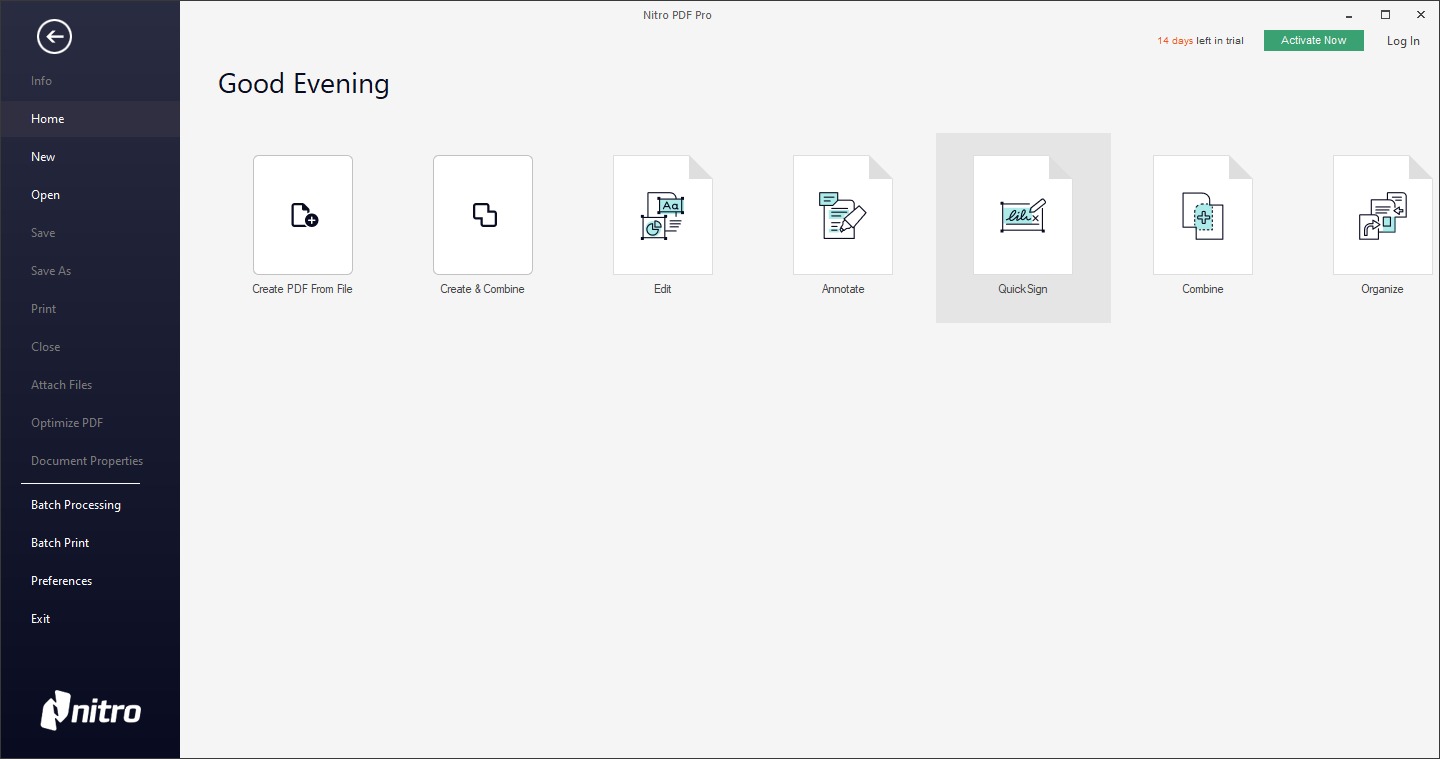
Open the Activation Screen in Nitro Pro
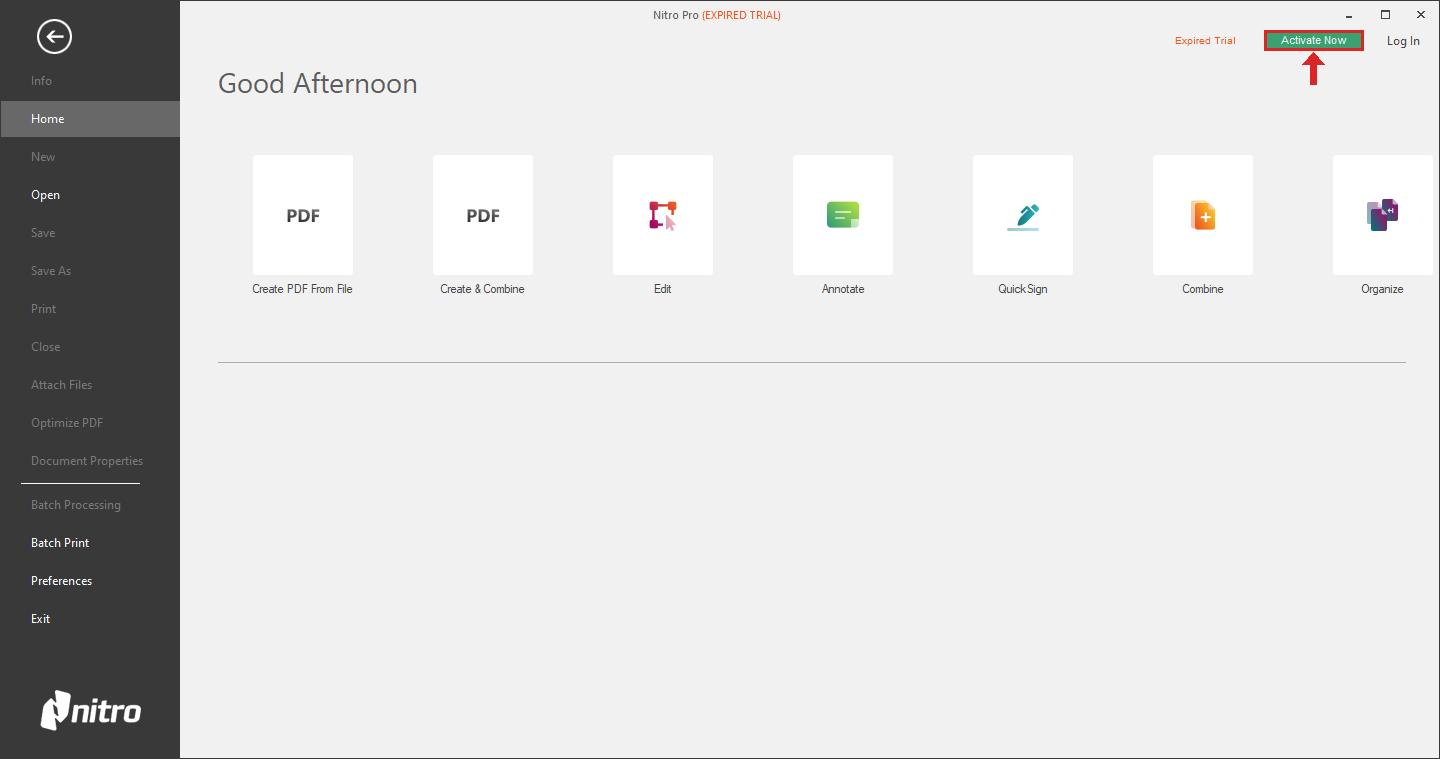
Once Nitro PDF Pro opens, look at the top right of the application ribbon toolbar (or open the Help tab) and click on the Activate Now button indicated by the red arrow.
Access Advanced Activation Options
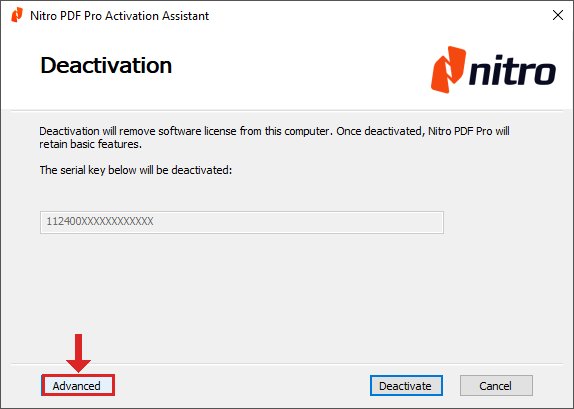
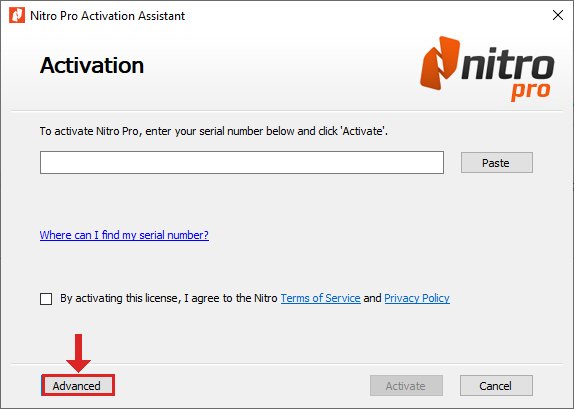
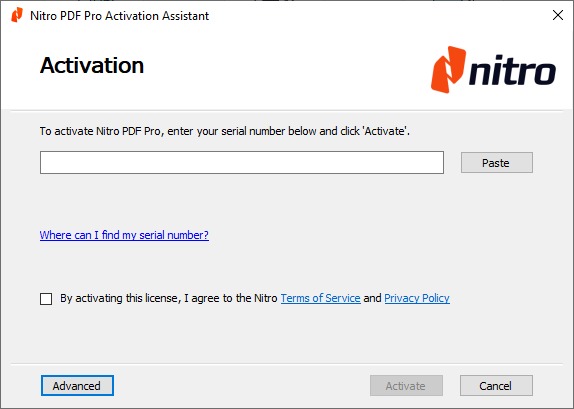
In the Nitro Pro Assistant dialog window that pops up, click on the Advanced button located in the lower-left corner, as indicated by the red arrow.
Select Manual (Offline) Activation
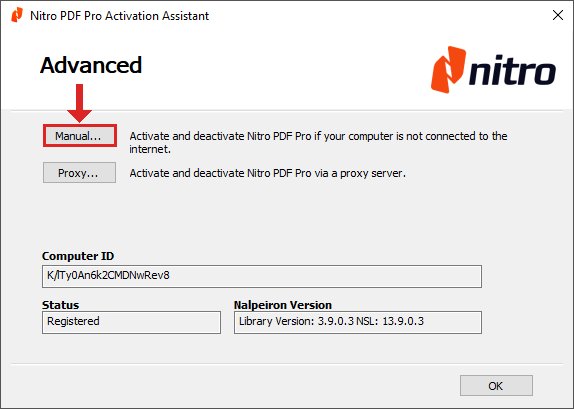
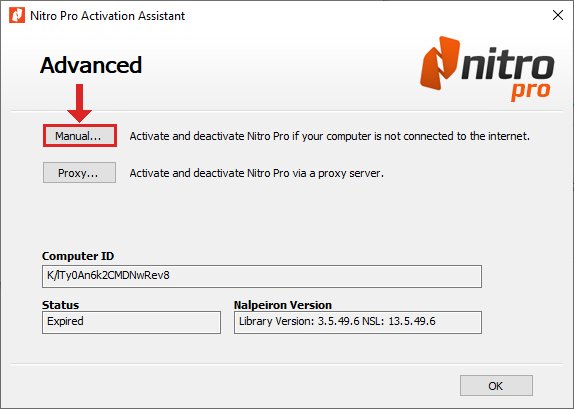
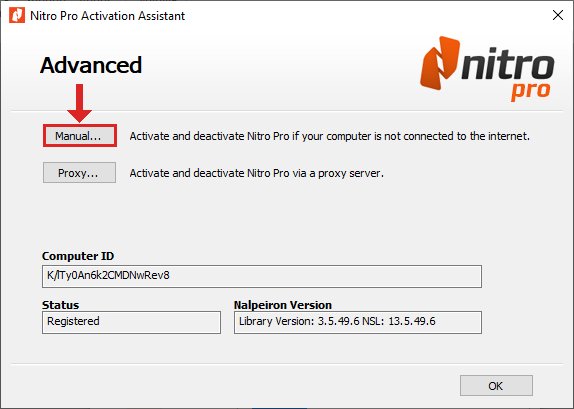
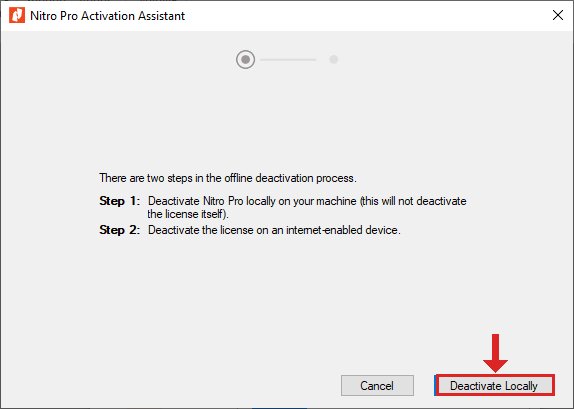
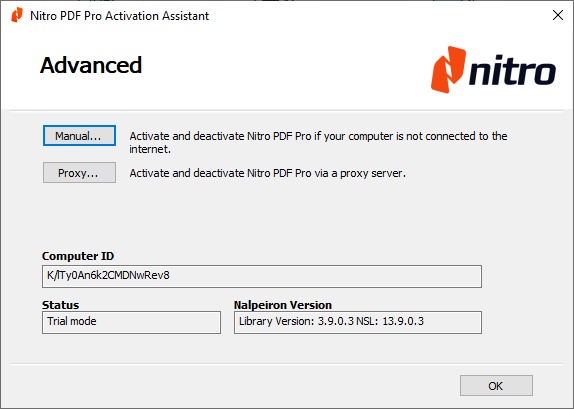
In the Advanced Activation screen, choose the Manual... option indicated by the red arrow. This allows you to generate a hardware-locked request code without requiring direct internet access from Nitro Pro.
Enter Your 18-Digit License Key
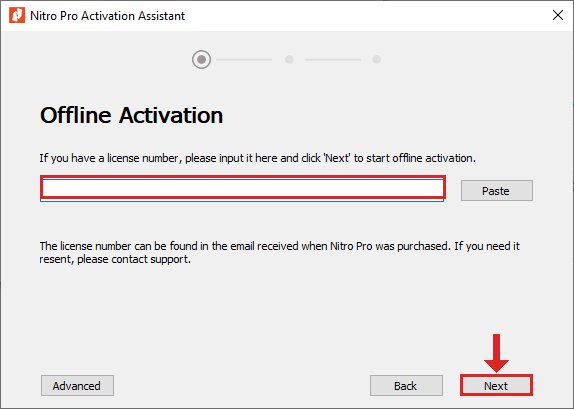
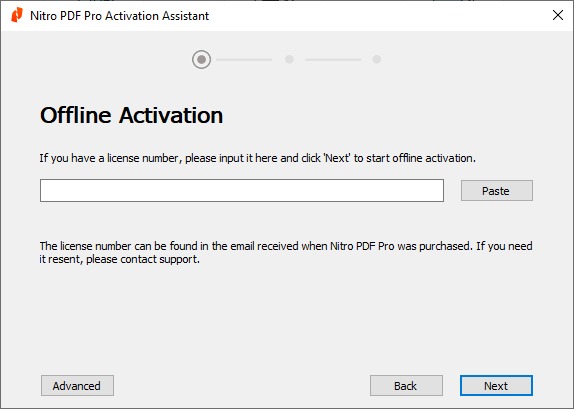
Under 'Offline Activation', paste your genuine 18-digit license key into the highlighted license field, then click the Next button indicated by the red arrow.
Copy Your Encrypted Activation Request Code
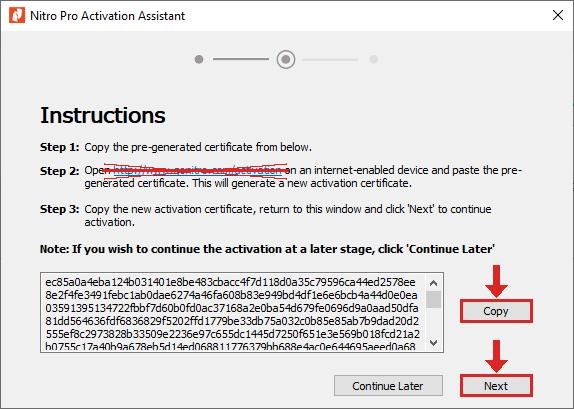
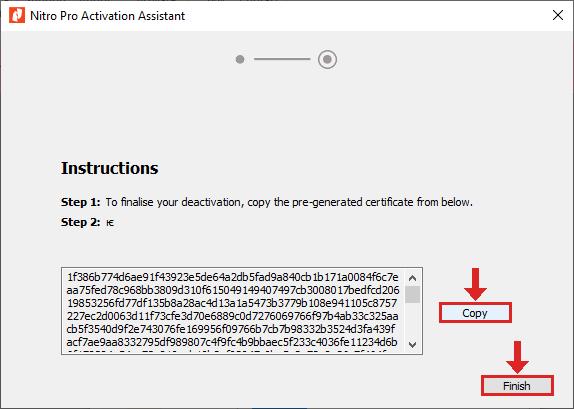
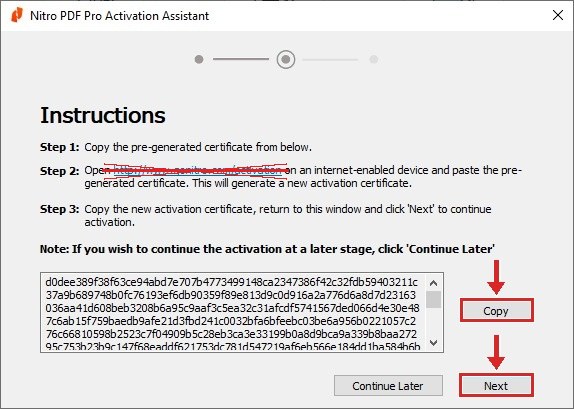
Nitro Pro will now display your unique, encrypted Activation Request Code.
Click the Copy button indicated by the red arrow to copy this full request code to your clipboard. Then click Next.
Generate Certificate on Portal & Apply in Nitro Pro Portal Step
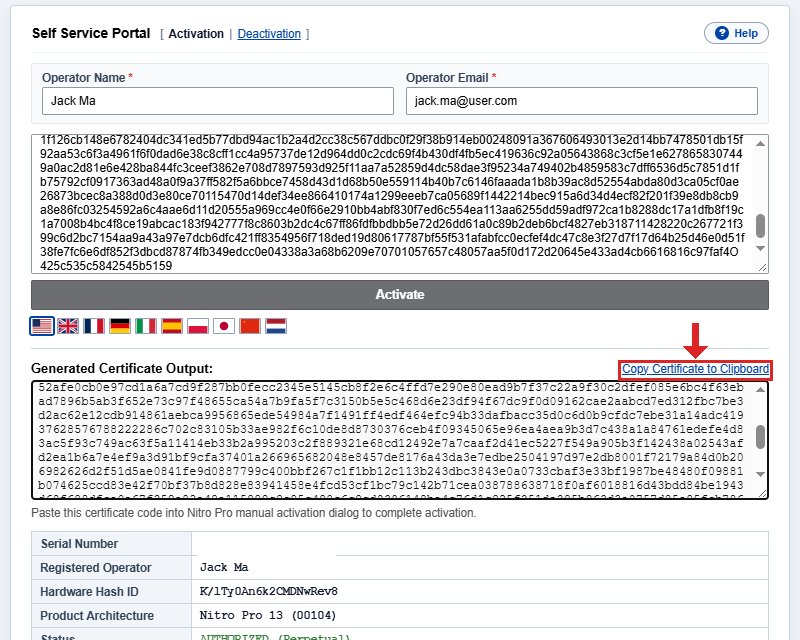
Now navigate to our offline activation portal:
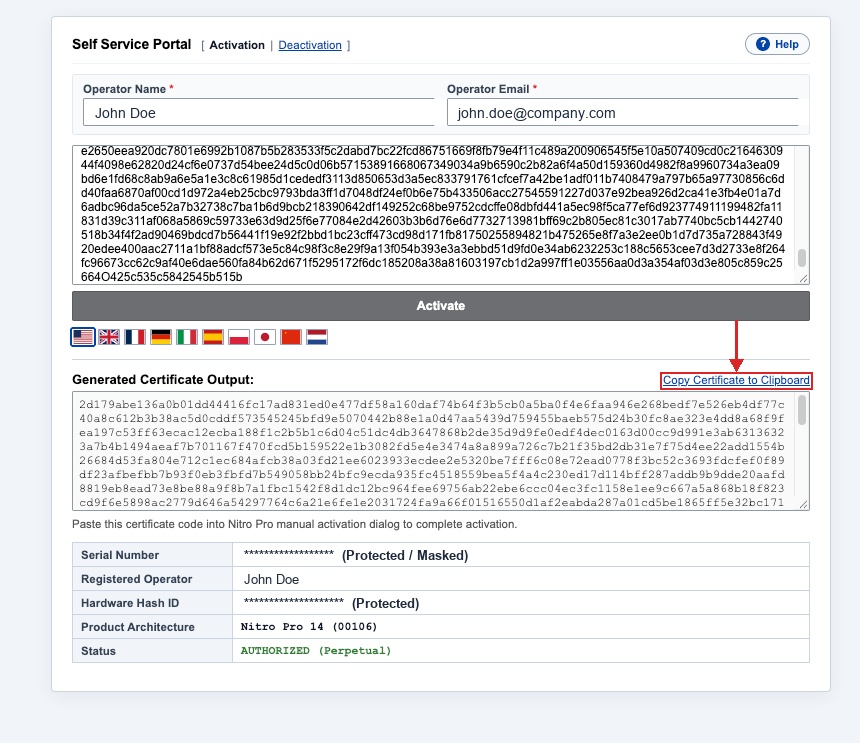
- Enter your Operator Name and a valid Operator Email.
- Paste the encrypted Activation Request Code copied in Step 7.
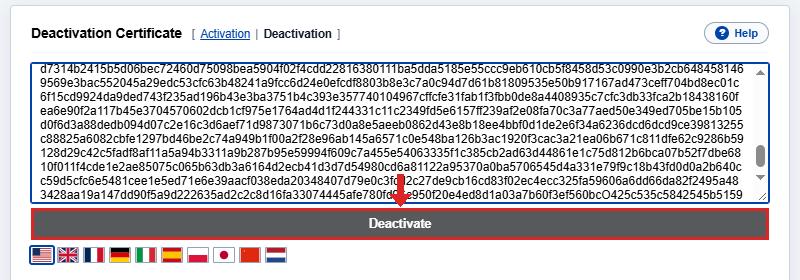
- Click Activate, confirm details, and copy the generated Activation Certificate.
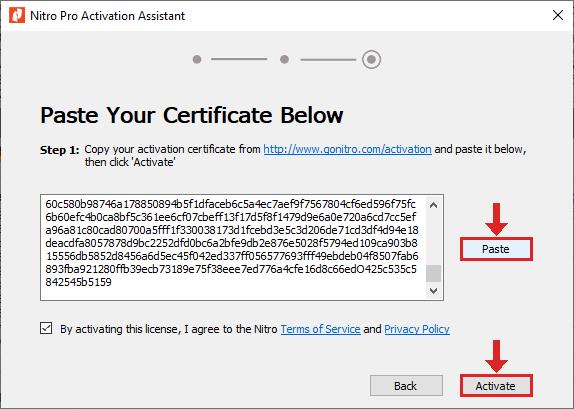
Return to Nitro Pro. Paste the certificate into the text field, tick the Terms of Service checkbox, and click Activate.
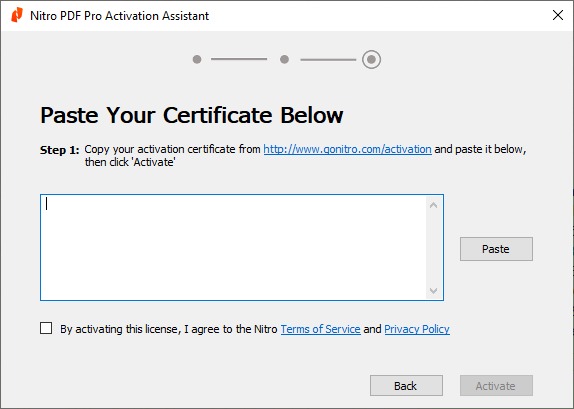
Finalize Activation
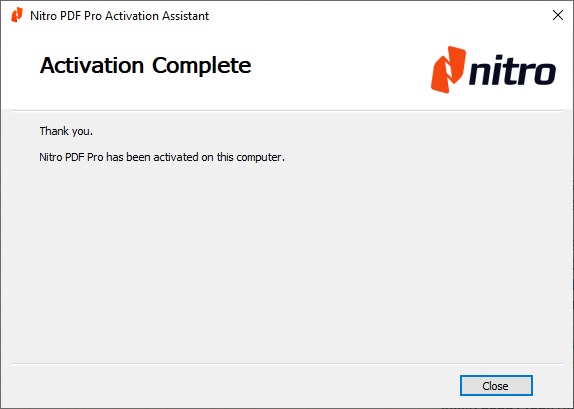
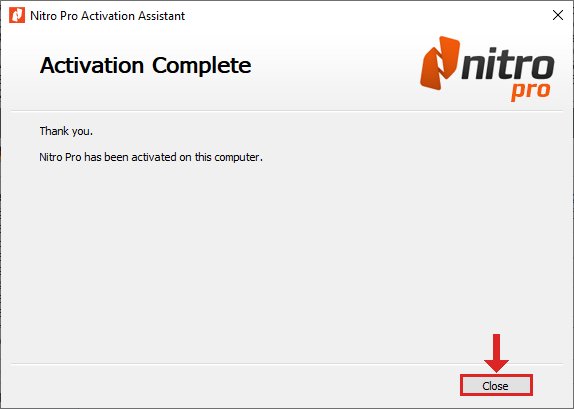
A confirmation dialog will appear stating that Nitro Pro has been successfully activated. Click the Close button indicated by the red arrow.